
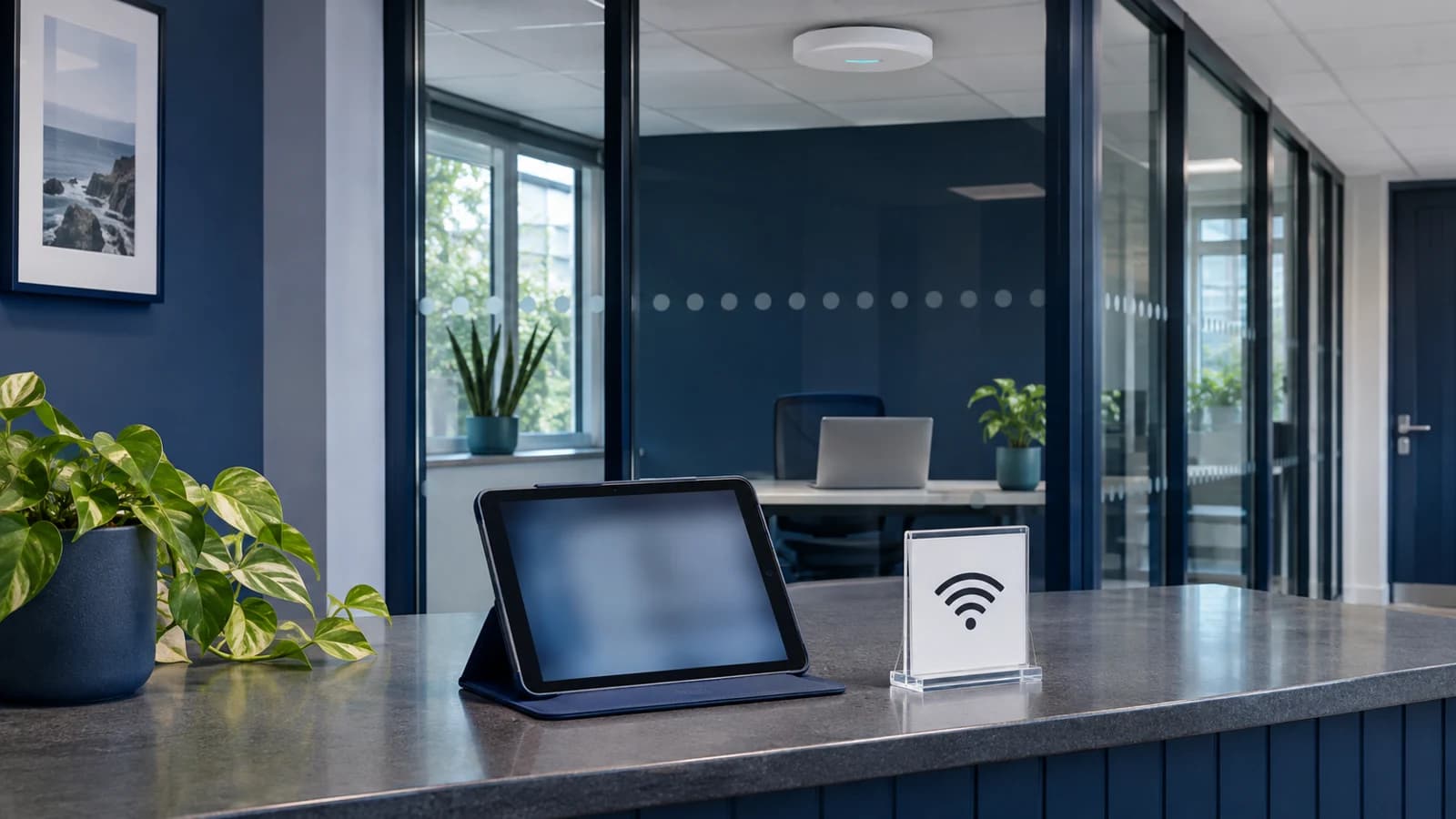
A business guest Wi-Fi network should let visitors use the internet without giving them access to staff systems. Agree that boundary before choosing a login page or printing the password. A common design uses separate wireless networks for guest and internal access, each with different access rules.
Start with what visitors actually need: browsing, email and perhaps a video call. Treat access to a printer, meeting-room screen or internal application as a separate request. Ask your IT provider to explain how those exceptions work and demonstrate the restrictions on the installed network, rather than accepting a network name containing “guest” as proof.
Separate the name from the access rules
A wireless network name, also called an SSID, tells people which network to join. The important part is what happens after they connect. Setting up a guest network usually means configuring the SSID and then, as a separate step, blocking wireless clients from the local network. Those are distinct configuration steps, even though a visitor only sees a name and a connection button.
Ask for a short description of the intended design in ordinary language. It should say which business networks visitors cannot reach and where the restrictions are enforced. Have the provider include wired systems in that discussion, such as office computers and storage. You should not need to interpret a firewall export to understand the agreed boundary.
Keep visitors apart where appropriate
Decide whether visitors need to communicate with one another’s devices. For an ordinary reception or customer waiting area, ask the provider to assess client isolation. Wireless client isolation stops wireless devices on the same network communicating with each other. That is a different requirement from preventing access to business systems.
Do not assume one isolation switch covers every route. Traffic on the same network and traffic routed through an upstream gateway can be handled differently, and the limits depend on configuration and firmware. Ask your provider to check the equipment you actually have. Record both visitor-to-visitor restrictions and visitor-to-business restrictions in the handover, with any exceptions clearly identified.
Agree exceptions before the meeting starts
Tell the provider if guests regularly present on a meeting-room display or need to print. Ask for an approved way to do that without handing out staff credentials or opening the whole office network. Make the requirement specific: which room, which device and what the visitor needs to do. Avoid a broad promise that “casting will work”.
Ask someone to own temporary access requests. A supplier visiting for maintenance may need different permissions from a customer waiting at reception. Agree who can approve that access, how the provider implements it and when it ends. If an exception becomes permanent, have it reviewed and documented rather than leaving an urgent workaround in place indefinitely.
Protect the working day from guest traffic
Discuss guest usage alongside ordinary business activity. Tell the provider about training days, events or a busy waiting room, especially if staff depend on calls or cloud applications. Ask whether guest bandwidth limits are appropriate. Most business Wi-Fi systems can limit bandwidth per device or per network, but the right settings need to fit your connection and workload.
Request a practical test while staff are working, not just a speed test in an empty building. Check a typical staff call while visitor devices use the guest connection. Agree what counts as acceptable and who investigates if it fails. For general coverage or connection problems, our office Wi-Fi troubleshooting guide can help you prepare the initial observations.
Test access, not just the welcome page
Ask the installer to demonstrate the agreed restrictions using authorised test devices and destinations. A successful internet connection proves only part of the job. Have them show that a visitor cannot reach the business resources you agreed to exclude, and that any approved meeting-room exception still works. Keep the test within an agreed scope rather than scanning systems yourself.
Request a dated handover note showing the tests, outcomes and unresolved items. Include who controls the configuration and how future changes are approved. Repeat the relevant checks after a significant network change or a new exception. The useful evidence is a recorded result against your access requirements, not a screenshot of a ticked setting.
Start with a visitor-access brief
Write down who visits, where they connect and whether they need anything beyond internet access. Add the systems that must stay out of reach and identify the person who approves exceptions. Share that brief with whoever manages your network before asking for hardware or a guest portal.
Our managed Wi-Fi service checklist covers the wider buying decision, including surveys and support responsibilities. If you want BMT to review the visitor-access part, bring the brief and any existing network documentation. Ask for a written design and a demonstration of the boundaries before signing off the work.
How we can help: see our point-to-point wireless.
Related reading
Why Your WiFi Feels Slower Than Advertised (And Simple Fixes That Actually Work) · Managed Wi-Fi for business · What managed Wi-Fi should include